
Want to stay up to date on new properties matching your criteria, without having to run your search again every day? Here's how to create an email alert in just a few clicks.
Start a search
From the homepage, describe what you're looking for or use the classic search to select your basic criteria (property type, transaction type, location). This takes you to the list of results matching your search.
Click "Keep me posted!"
On the results page, click the "Keep me posted!" button. A window opens showing all the criteria for your alert, already pre-filled with your search.
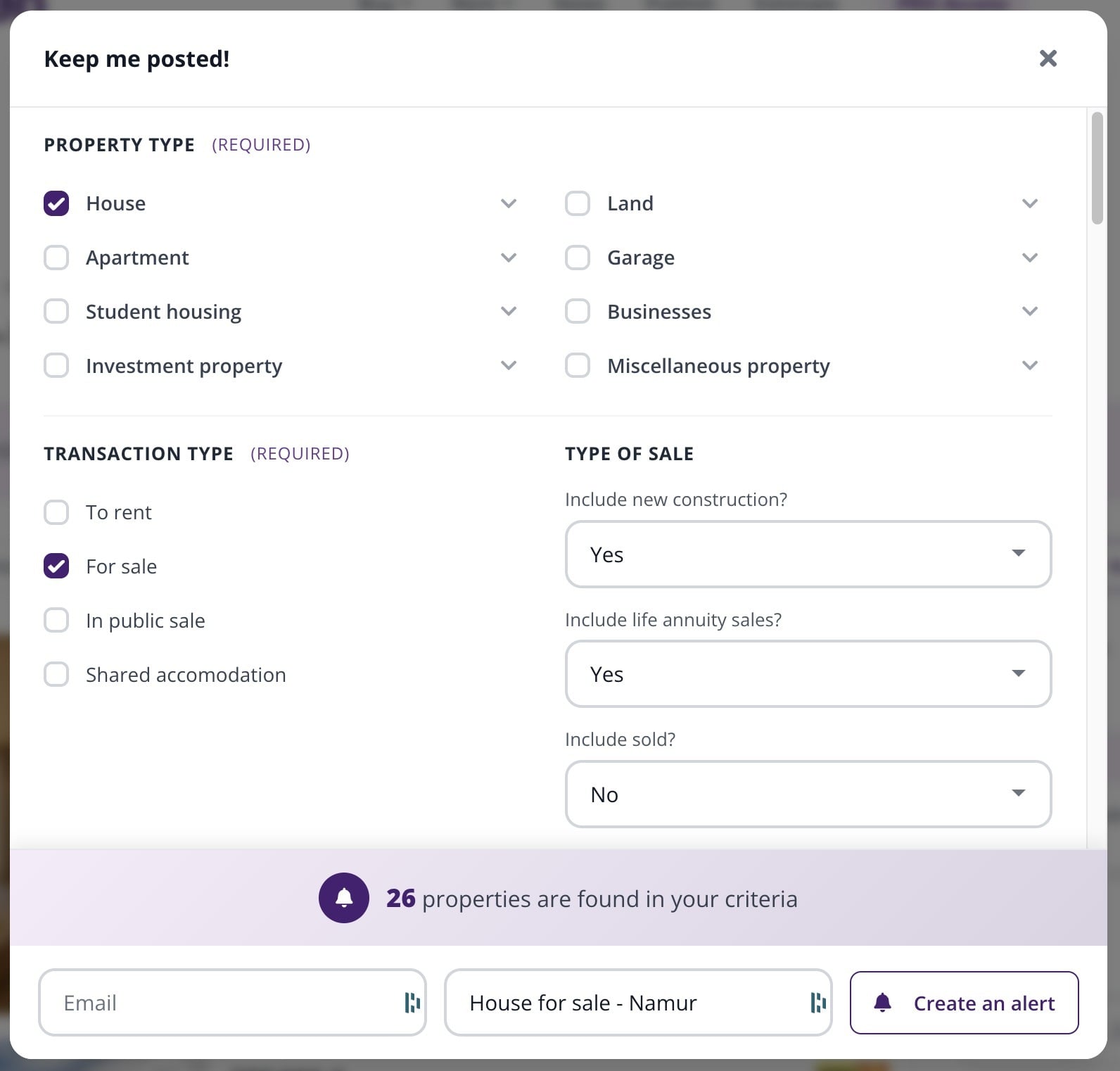
"Keep me posted!" window: property type and transaction type (required fields), plus sale-type options.
Specify the location and refine as needed
The location is also required: enter a city, postal code, province, or region. You can then refine your alert with additional optional criteria (price, number of bedrooms, surface area, etc.). The number of properties matching your criteria updates in real time as you refine them.
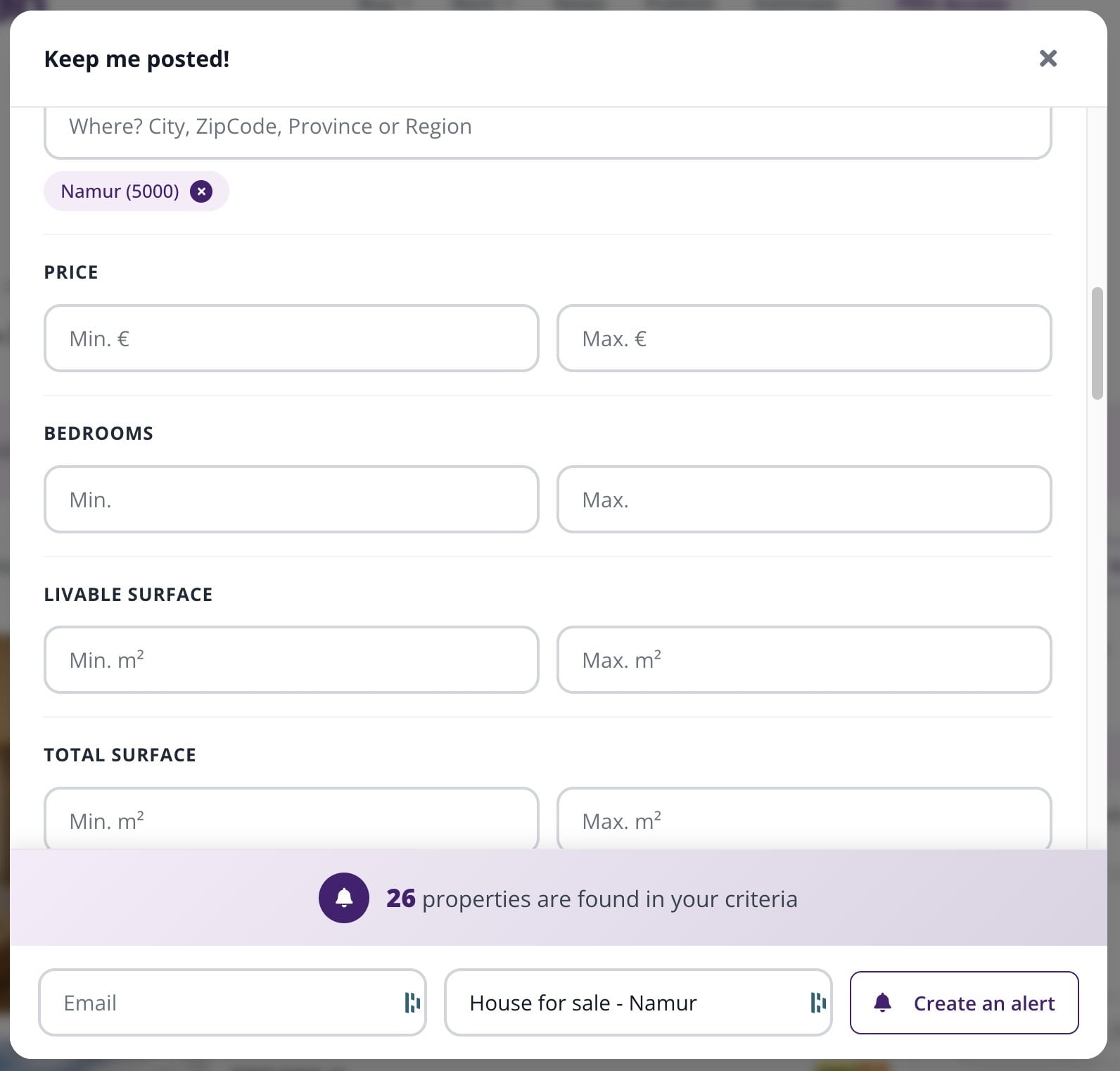
"Location" field (required) and additional filters such as price.
Name your alert and confirm
At the bottom of the window, a bar constantly shows how many properties match your criteria, and brings together the last three elements:
- the "Email" field: the address where you will receive the alert;
- the "Name your search" field, already filled in from your criteria — for example House for sale - Namur — which you can edit;
- the "Create an alert" button.
The button becomes active as soon as the property type, transaction type, and location have been filled in.
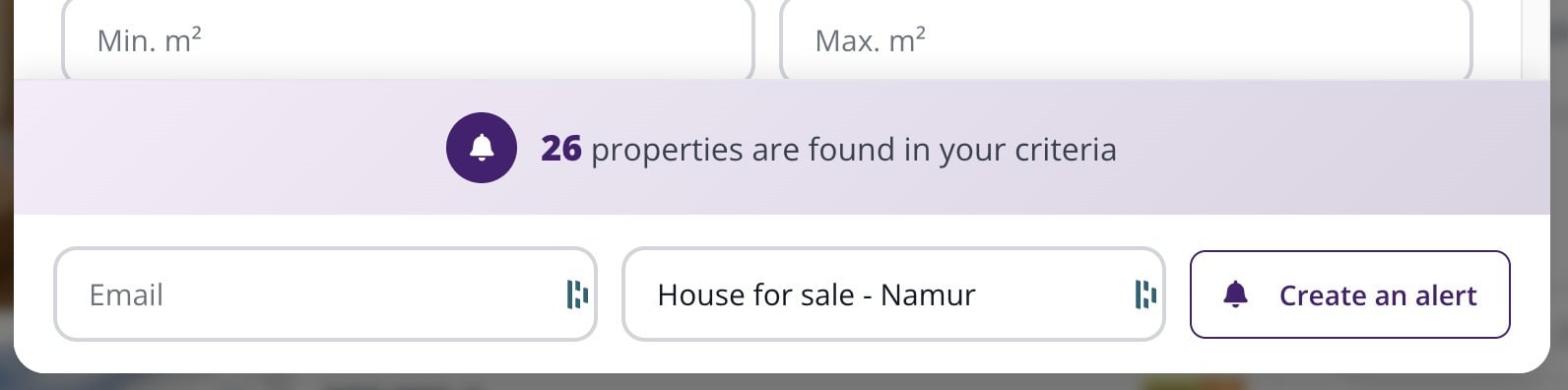
The bottom bar: results counter, email address, search name, and the button to create the alert.
| Good to know: the "Email" field lets you create an alert without being logged in. An Immovlan account is still strongly recommended: it is what will let you find, edit, or delete your alerts later. If you already have one, log in before creating your alert. |
To edit or cancel an alert you've already created, see our article "Manage your email alerts".