
You've found your dream home, or an alert is no longer useful? You can remove it in a few clicks — without touching your other alerts.
1. Open "My saved searches"
Log in, then click your initials at the top right of the site and choose "My Immovlan". In the left-hand menu, under "My searches", open "My saved searches": all your alerts are there, each on its own card.
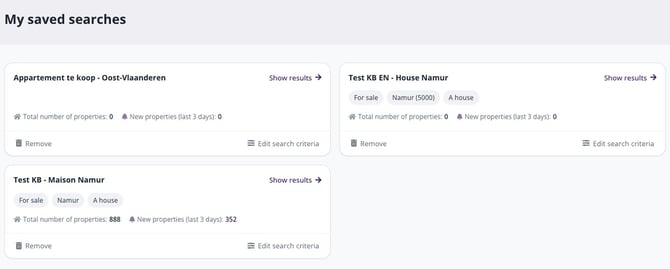
The list of your alerts in "My saved searches".
2. Remove the alert and confirm
On the relevant alert's card, click "Remove". A confirmation window appears: "Are you sure you want to delete this item?". Confirm with "Remove", or change your mind with "Cancel". Once the removal is confirmed, you will no longer receive any email for this alert.
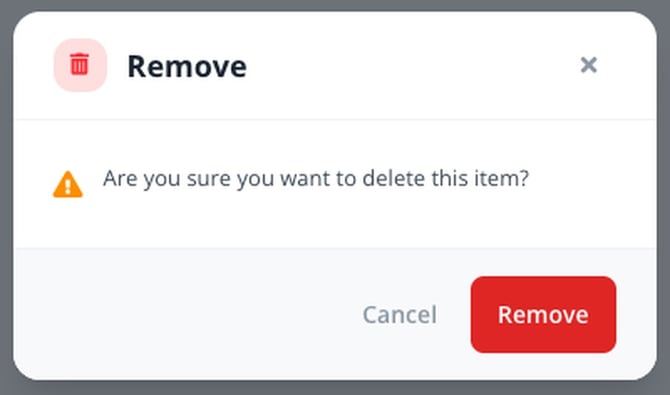
The removal confirmation: the operation is final.
3. Don't have an account?
Every alert email ends with a sentence letting you manage your alert. Click the "unsubscribe" link: this alert stops being sent, without touching your other alerts.
IMAGE3
The bottom of an alert email, with the links to edit your alert or unsubscribe.
| Tip: removal is final, but nothing stops you from creating an identical alert again later — see "How do I create an email alert?". And if your alert brings back too many (or too few) results, adjust its criteria instead: "How do I edit an email alert?". |
This article is part of the How do email alerts work on Immovlan? series, which explains how to create, edit and delete an alert.