
Rather than scrolling through a list of listings, you can view the available properties directly on a map. It's the easiest way to see where the properties are located, compare neighbourhoods and spot prices at a glance.
1. Open the map search
- On the Immovlan homepage, click the "⚠Or use the classic search" link below the search field.
- Choose the ⚠For sale or ⚠For rent tab. You can already enter a property type, a location or a budget: this is not required.
- Click the "⚠On map" button.
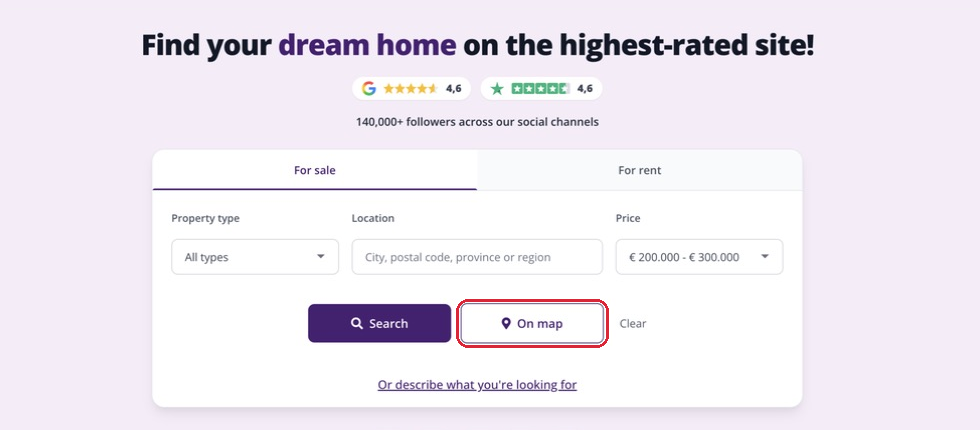
The "⚠On map" button is located just to the right of the "⚠Search" button.
| Tip: already viewing a list of results? No need to start again from the homepage: simply click "⚠Map", at the top right of the list. Your criteria are kept. |
2. Finding your way around the map
The map opens on the whole of Belgium. Each dot represents a property. Here are the five areas to know:
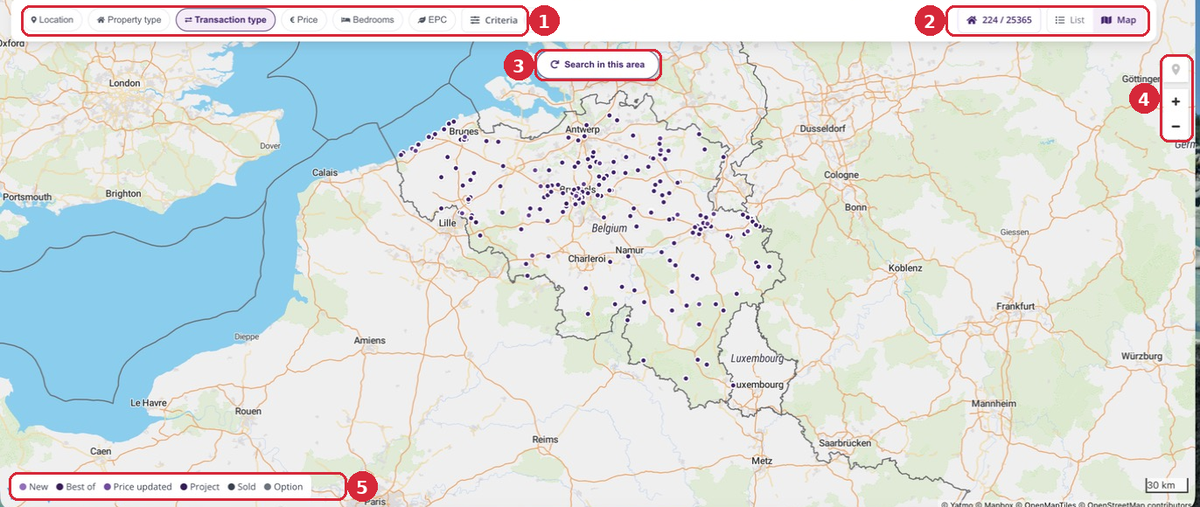
- The quick filters. ⚠Location, ⚠Property type, ⚠Transaction type, ⚠Price, ⚠Bedrooms and EPC. The ⚠Criteria button opens the full list of criteria (property condition, garden, terrace, garage, etc.). The small number shows how many filters are active.
- The counter and the ⚠List / ⚠Map toggle. The first number is the number of properties currently shown on the map, the second is the total number of properties matching your criteria. Click ⚠List to return to the classic view.
- "⚠Search in this area". This button appears as soon as you move or zoom the map. It runs the search again on the portion of the map visible on your screen.
- The map controls. The marker icon shows or hides the points of interest (schools, shops, public transport stops...). The + and − buttons let you zoom in and out.
- The legend. It explains the colour of the dots: ⚠New, Best of, ⚠Price updated, ⚠Project, ⚠Sold, ⚠Option.
3. Go to the area you are interested in
Two methods, your choice:
- By place name. Click the ⚠Location filter, type a municipality, postal code, province or region, then choose a suggestion from the list. The "⚠+ Localities" option also includes the villages belonging to the municipality.
- By hand. Drag the map with your mouse (click, hold and move) and zoom with the scroll wheel or the + and − buttons.
| Keep in mind: the map does not update by itself. After choosing a location or moving the map, click "⚠Search in this area" to display the properties in the visible area. |
4. View a listing from the map
The more you zoom in, the more precise the map becomes: the dots then turn into price labels.
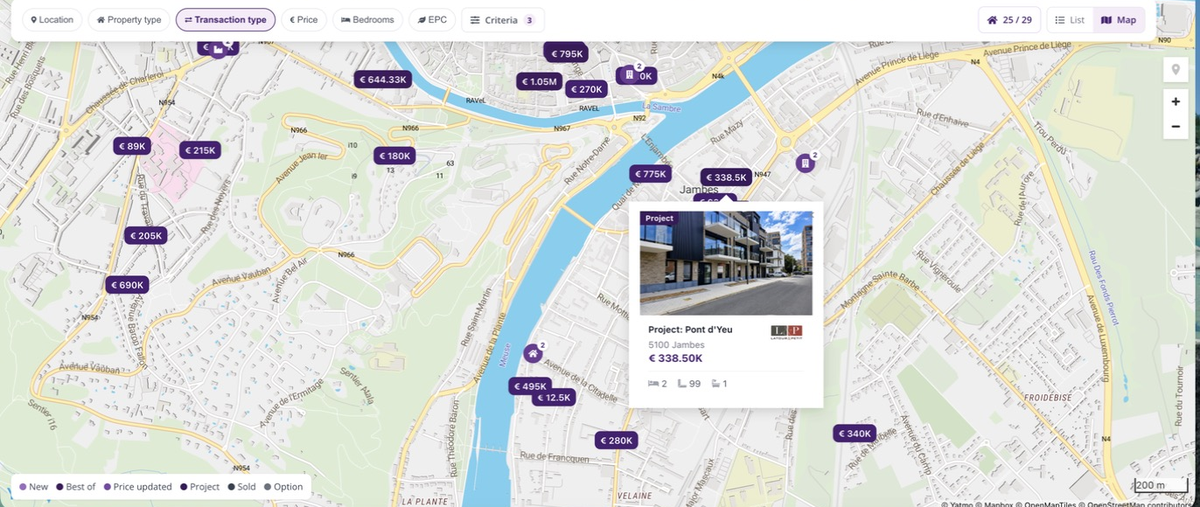
Clicking a price label opens the listing preview.
- A label with a small number means that several properties are located at the same spot: zoom in further to separate them.
- A price range (for example "€ 189,00K - € 550,00K") corresponds to a new-build project offering several units.
- Click a label to display the preview: photo, property type, municipality, price, number of bedrooms and living area.
- Like the property? Click the preview to open the listing's full page, from which you can save it to your favourites.
5. Good to know
- Only properties whose location has been provided by the advertiser appear on the map. That is why the first number of the counter is sometimes lower than the second.
- To be notified as soon as a new property matches your search, switch back to the ⚠List view and click "⚠Keep me posted!".
This article is part of the How do I search for a property on Immovlan.be? series, which presents the four ways to search for a property.