
1. Where is the share button?
Open the listing you are interested in. At the top right of the photos you will see two round icons: the heart, which saves the listing to your favourites, and the share arrow. Click the arrow: a menu opens with four options.
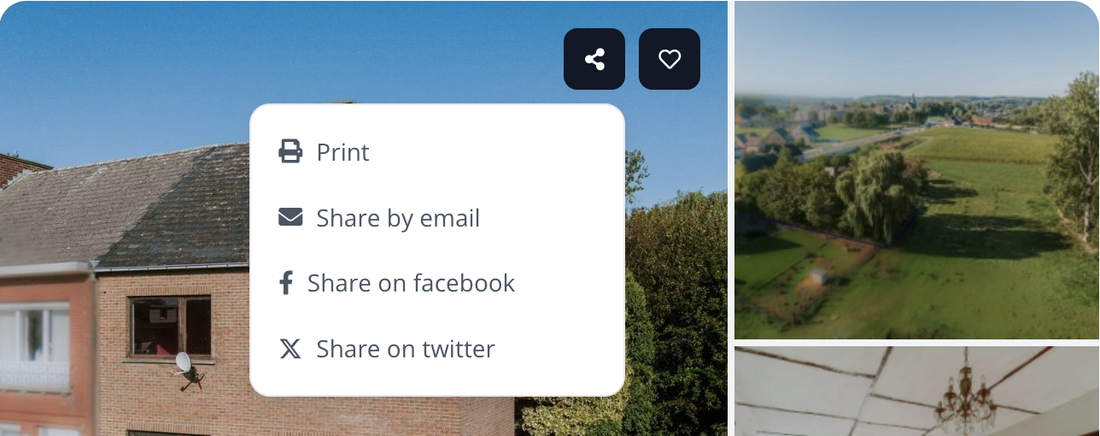
The share button, at the top right of the photos, and the four options in the menu.
2. Share by email
Click "Share by email". The "Send to a friend" window opens. Fill in the four fields, all of them mandatory:
- "Your name" — the name that will appear as the sender;
- "Your e-mail address" — your own address, so your friend can reply to you;
- "The e-mail address of your friend" — the recipient's address;
- "Your message" — the note that goes with the listing.
Tick "Receive a copy of this message" if you want to keep a record of what you sent, then click "Send". The message "Your message has been sent!" confirms it. The link to the listing is added automatically: you have nothing to copy out.
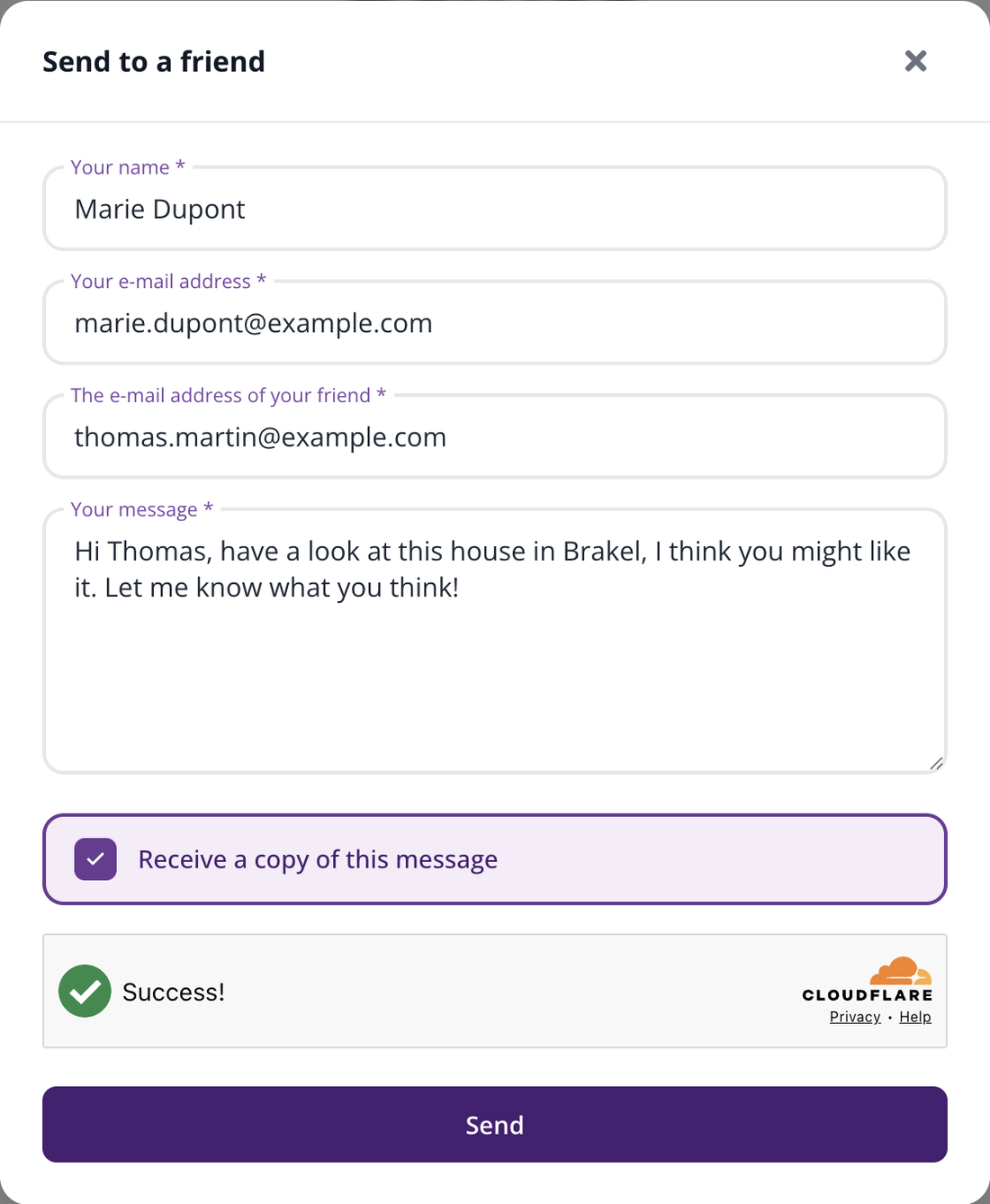
The "Send to a friend" window.
3. Share on Facebook
Click "Share on facebook". Facebook opens in a new tab with the listing already prepared: the photo, the title and the link. Add a comment if you like, choose where to publish — your timeline, a group, a conversation — and confirm. If you are not logged in to Facebook, you will be asked to sign in first.
4. Share on Twitter (X)
Click "Share on twitter". A new tab opens on X, formerly Twitter, with a message already written containing the link to the listing. Edit the text if you want, then post it.
| Remember: the menu still shows the name "twitter", but it does take you to X, the network's new name. |
5. Print the listing or save it as a PDF
Click "Print": your browser's print window opens on a complete, clean fact sheet — price, reference, address, description and every detail of the property, without the site menus.
Choose your printer to get the sheet on paper. Or choose "Save as PDF" as the destination: you get a file you can then send by email or through WhatsApp, like any other attachment.
6. What about WhatsApp?
Immovlan has no WhatsApp button, but sharing is still simple: all you need to do is copy the address of the listing.
- On the listing page, click in your browser's address bar, right at the top of the screen: the address is selected in full.
- Copy it with Ctrl + C (Windows) or Cmd + C (Mac).
- Open WhatsApp — the application on your computer or web.whatsapp.com — and choose your conversation.
- Paste the address into the message field with Ctrl + V or Cmd + V, then send it.
WhatsApp automatically shows a preview of the listing, with the photo and the title.

The address of the listing, selected in the address bar: that is what you need to copy.
| Tip: on a smartphone, your browser's share icon offers WhatsApp directly, along with your other messaging apps. |
7. Good to know
- Sharing works without an account: neither you nor the recipient needs to be registered on Immovlan.
- The link stays valid as long as the listing is online. Once the property is sold or rented, the listing disappears from the site and the link no longer leads anywhere: the printed sheet or the PDF, however, remain readable.
- The heart next to the share button sends nothing: it saves the listing to your favourites, so you can find it again later from your account.